
Responsive Ghost themes: how to test one before you buy
A demo can look good on desktop and still be awkward on a phone. Here’s how to check its layout, menu, images and loading speed before you buy.
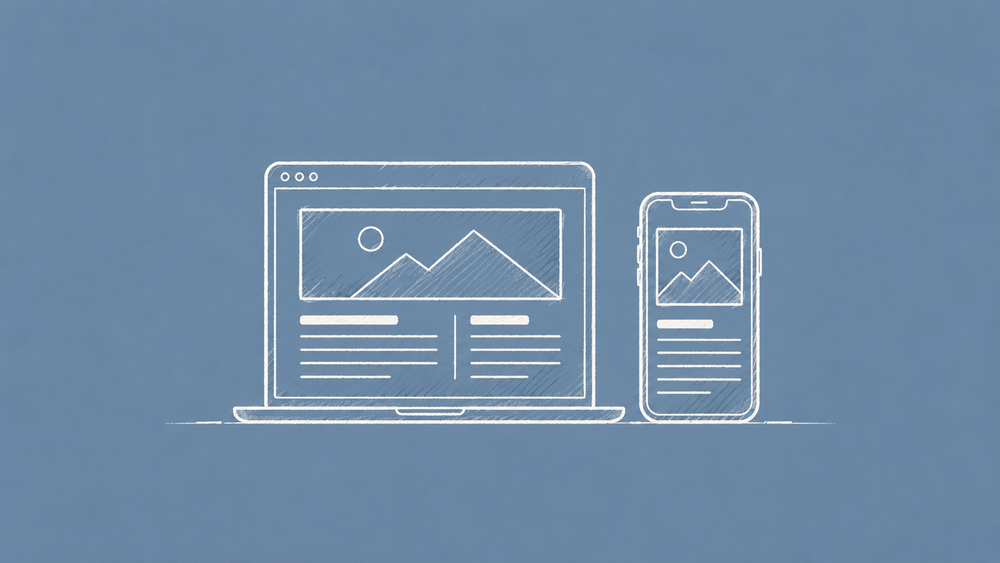
A theme can fit a phone screen and still have a menu you cannot close, unreadable captions or images that push the page sideways. A quick look at the homepage will not catch all of that.
Open the theme's demo and choose three pages: the homepage, a long post and a tag page that lists several posts. Use those same pages throughout the checks below. You do not need to install the theme.
The screenshots below use Stretch, a theme I make. They show what to inspect; the same checks apply to other themes.
Start with the browser preview
Your browser can show a page at different screen widths without resizing your whole window.
In Chrome:
- Open the demo and then open DevTools from the browser's developer tools menu.
- Click Toggle device toolbar. With DevTools focused, the shortcut is Cmd + Shift + M on Mac or Ctrl + Shift + M on Windows.
- Choose Responsive in the dimensions menu, then enter a width from the table below.
In Firefox: open Responsive Design Mode with Cmd + Option + M on Mac or Ctrl + Shift + M on Windows and Linux. Enter the width at the top.
Try these widths, in pixels:
| Width | What it helps you check |
|---|---|
| 320 | A narrow phone screen |
| 375 | A wider phone layout |
| 768 | A tablet in portrait orientation |
| 1024 | A tablet in landscape or a small laptop |
| 1440 | A desktop layout |
At each width, open the same three pages. The layout should adjust without making the text smaller just to fit everything in.
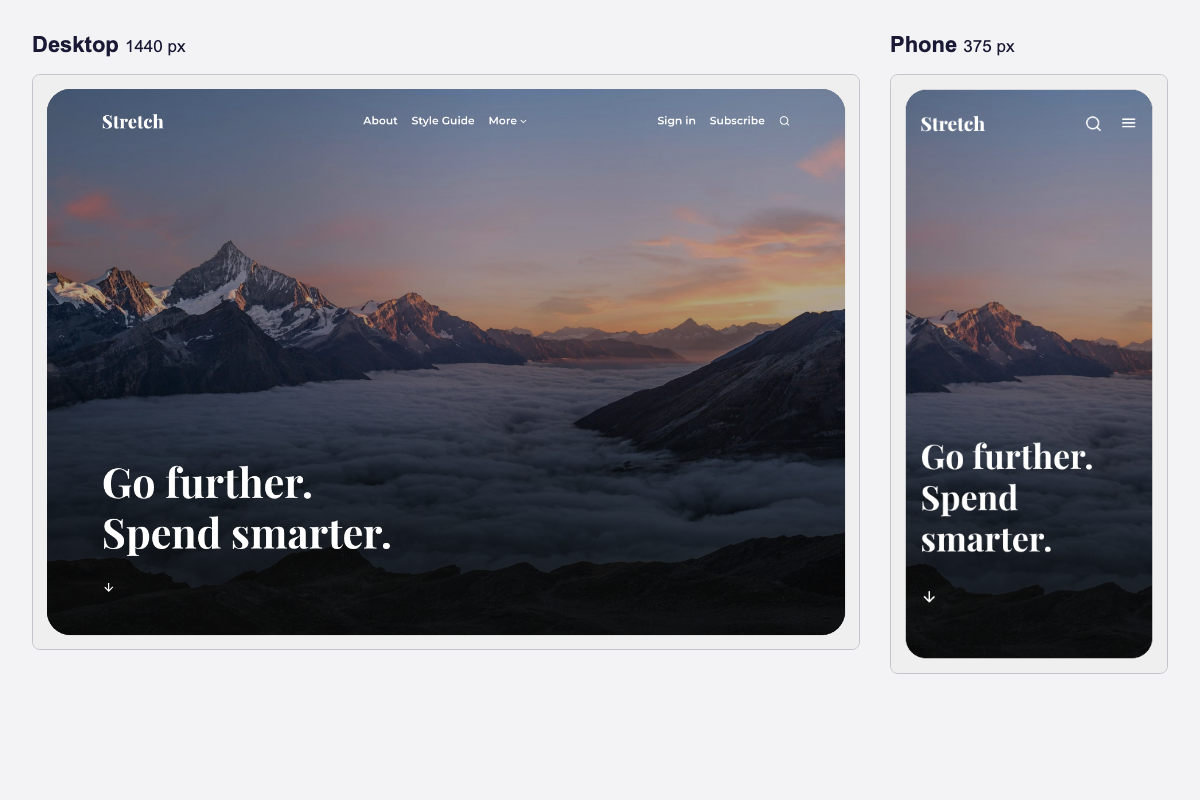
Stretch at 1440 px and 375 px. The navigation collapses into a menu, the title wraps and the cover image changes crop.
Check the layout and controls
Work through this list in the browser preview. Pay particular attention to the two phone widths.
- Look for sideways scrolling. Text, images and cards should fit the screen. A wide code block may scroll inside its own box, but it should not push the whole page sideways.
- Open and close the menu. Try dropdowns too. Make sure every navigation link is reachable and the menu does not cover its own close button.
- Find a long title. It should wrap without overlapping an image, another title or the edge of a card.
- Read a full post. Check the body text, captions and lists. You should not have to zoom in to read them.
- Look at wide images and galleries. They should stay within the screen. If the demo has an editor-card showcase, use it to check the content types you plan to publish.
- Try landscape orientation. Use the rotate control or switch the width and height. Check that the header and menu still leave enough room to use the page.
- Check dark mode, if offered. Switch the theme or device setting and reload. Text, logos and form fields should remain visible.
If a demo has no long posts or examples of the cards you need, ask the seller for a page that shows them. A polished homepage is not enough to judge the reading experience.
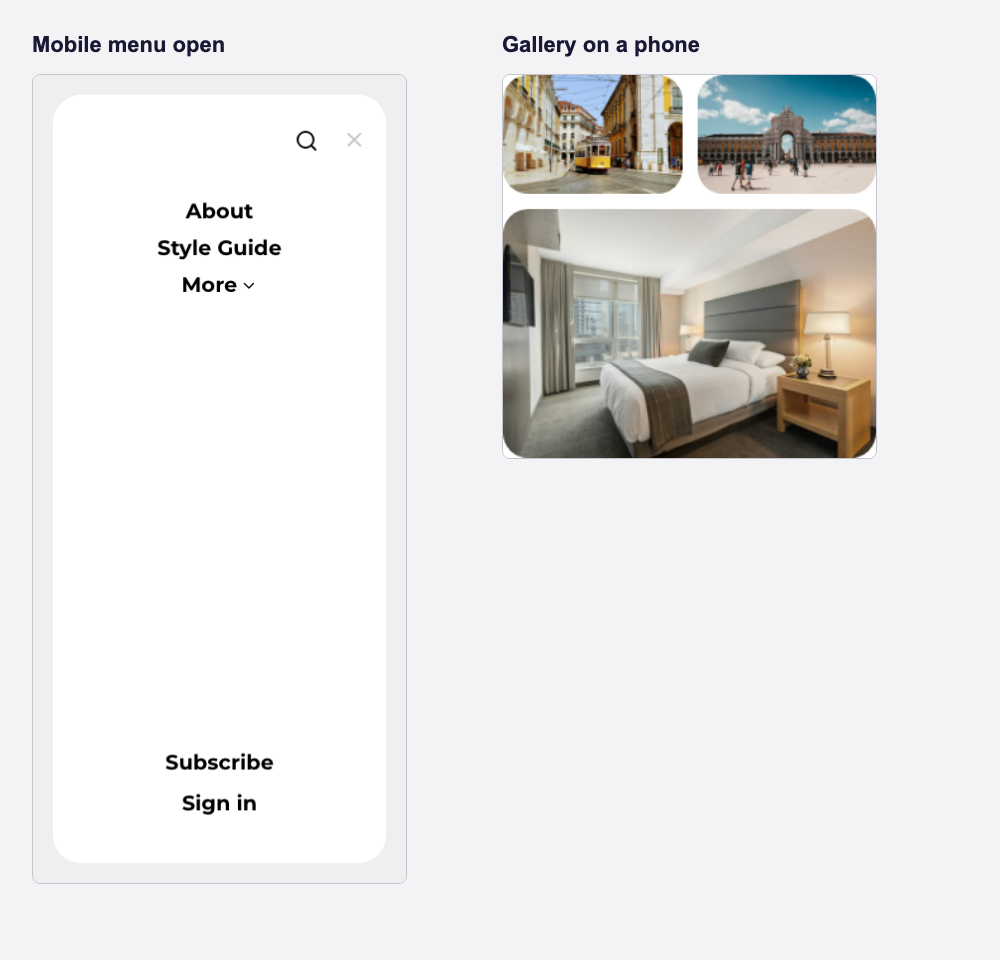
Two checks on a phone-sized screen: the menu has a visible close control, and the gallery stays inside the page.
Repeat the touch checks on your phone
Browser previews help you spot layout problems, but they do not reproduce every phone or browser behaviour.
Open the demo URL on your own phone. Scroll through a post, open the menu and try the links and signup form with your thumb. Buttons should be easy to tap without accidentally hitting the link beside them.
Rotate the phone once and check the menu again. You are checking how the page feels to use, rather than repeating every desktop test.
Watch how images load
Reload a post and scroll down. Images should appear without pushing the text around. If the page jumps while you read, note which image or embed caused it.
For a closer check in desktop Chrome:
- Right-click the post's main image and choose Inspect.
- Look for
srcset. This is a list of image sizes that lets the browser choose one suitable for the screen. - Open the Network tab, reload and compare the image download at phone and desktop widths. A phone should not need the same oversized file as a large screen.
Ghost can resize images stored on the site, but the theme has to request suitable sizes for feature images. An image hosted elsewhere may behave differently. Ask the seller about a large download before assuming the whole theme is slow.
Use PageSpeed to investigate slow loading
- Open PageSpeed Insights and paste in one of the demo page URLs.
- Start with the Mobile results.
- Look at the findings about loading and moving content, rather than judging the theme by its overall score alone.
You may see three Core Web Vitals:
- LCP: how long the main image or large block of content takes to appear.
- CLS: how much the page layout shifts while loading.
- INP: how quickly the page responds when someone interacts with it.
PageSpeed separates real visitor data from a lab test. Small demo sites may not have enough visitor data to show INP. The lab test can still help you find slow images, scripts and layout shifts.
A demo's photos, embeds and hosting affect the results too. If you compare two themes, use pages with similar content. For a hands-on check, choose a slower network setting in Chrome DevTools and reload: can you read and use the page while the rest loads?
Decide what needs fixing before you buy
A broken phone menu, unreadable text or a page that scrolls sideways needs a fix before purchase. Send the seller a screenshot, the page URL, your browser and the screen width. Ask them to show you the corrected demo.
For smaller issues, such as an awkward caption or uneven spacing, decide how often your readers would encounter them. Ask whether a fix is planned rather than assuming you can change it in Ghost's settings.
If the layout works but loading is slow, use the PageSpeed findings to ask a specific question about the image or script causing the delay.
Once the demo works well on your devices, use the guide to choosing a Ghost theme to check compatibility, licence and support before paying.
Discussion