
Portal Explained: How Ghost 4.0 Handles Signups Without Custom Code
Ghost 4.0 Portal embeds signup, login, and Stripe checkout on any theme—no custom JavaScript required. Here is how it works and how to configure it.
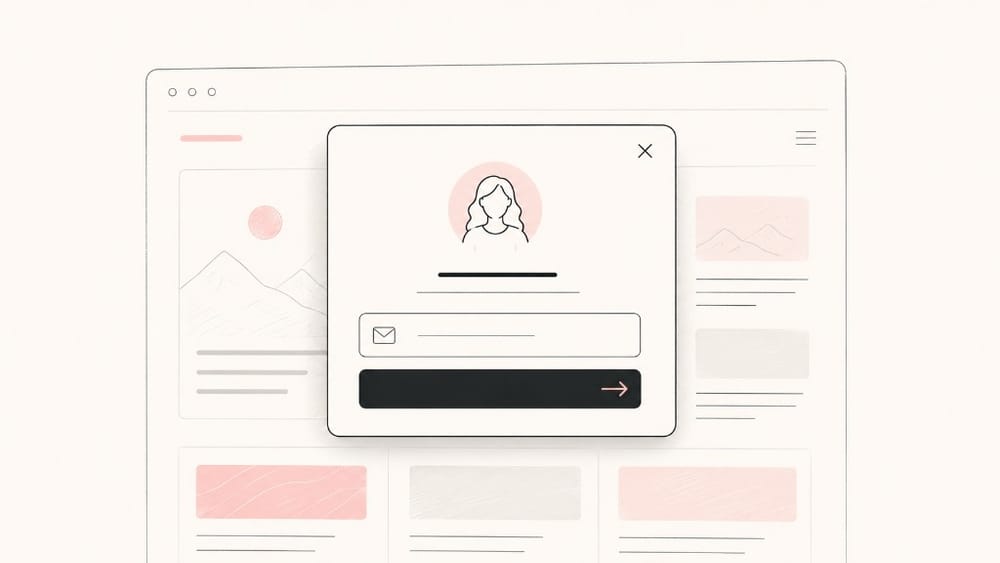
Before Ghost 4.0, membership signup often meant custom theme links, hand-rolled modals, or sending readers to a separate account page. Portal changed that: a core-delivered overlay that handles free signup, paid upgrades, and account management—dropped into any theme with a script tag, no bespoke front-end code required.
What Portal actually is
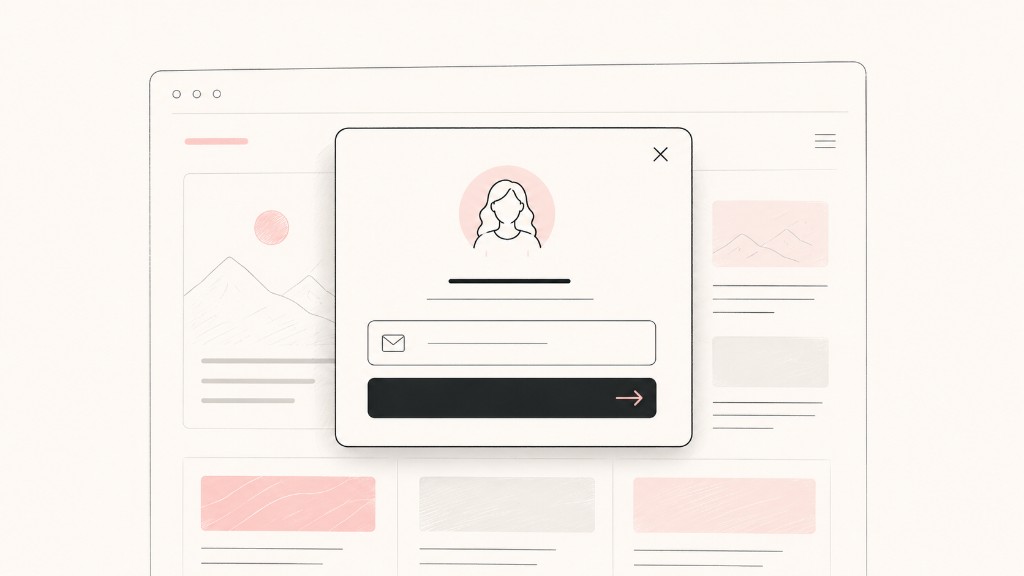
Portal is not a page. It is a floating membership UI Ghost injects on top of your public site. Readers click “Subscribe” or “Sign in” from your theme; Portal opens a modal with email capture, tier selection, and Stripe checkout when needed.
Ghost hosts and maintains the component. Your theme supplies triggers—usually data attributes or helper links—not the entire auth flow.
Why Ghost built it
Ghost 3.0 added memberships, but adoption friction remained: theme authors implemented signup differently, mobile flows broke when checkout felt disjointed, and small teams lacked front-end resources to polish conversion.
Portal standardized the experience. Publishers got smooth, in-site signup while keeping list ownership, brand, and billing on Ghost.
How it works under the hood
{{ghost_head}}outputs Portal scripts when memberships are enabled- Theme buttons use Portal data attributes (e.g.,
data-portal="signup") to open specific views - Ghost authenticates members via magic link email—no passwords to manage
- Paid tiers route through Stripe Checkout inside the Portal flow
- Returning members manage subscriptions from the same overlay
You configure tiers, pricing, and benefits in Ghost Admin. Portal reflects those settings automatically.
What publishers configure
In Ghost Admin → Settings → Membership, set tiers and prices, Portal appearance, default newsletter, and member-only post visibility in the editor.
On the theme side, ensure @site.members_enabled is true and CTAs point at Portal triggers rather than hard-coded external URLs.
Theme developer checklist
- Include
{{ghost_head}}indefault.hbs - Add visible signup/signin links with Portal attributes
- Test paid posts: logged-out, free member, and paid member states
- Run GScan for 4.x membership rules before deploy
Portal reduces theme complexity. You are not rebuilding Stripe Elements in Handlebars.
Portal vs custom signup forms
Portal (default) suits most publishers—the fastest path to working checkout. Custom Content API flows fit headless front ends with fully bespoke UI. Legacy theme-only links should migrate.
If you run headless Ghost, Portal may not appear on your static front end—you rebuild signup using the Members API. For traditional Ghost themes, Portal is the supported path.
Common issues and fixes
- Modal does not open — confirm
{{ghost_head}}, memberships enabled, no CSP blocking Ghost scripts - Stripe test vs live mismatch — keys in Ghost must match Stripe mode
- Email login fails — verify transactional email domain (SPF/DKIM)
Why Portal still matters in Ghost 6
Later releases added analytics and social features—but the member graph Portal serves remains central. Newsletter growth, paid conversions, and member segmentation all assume readers can join frictionlessly.
For full release context, see the Ghost 4.0 release guide. For the membership foundation it built on, see Stripe + Ghost Members: A Publisher’s First 30 Days.

Discussion