Templates and menus
Post layouts
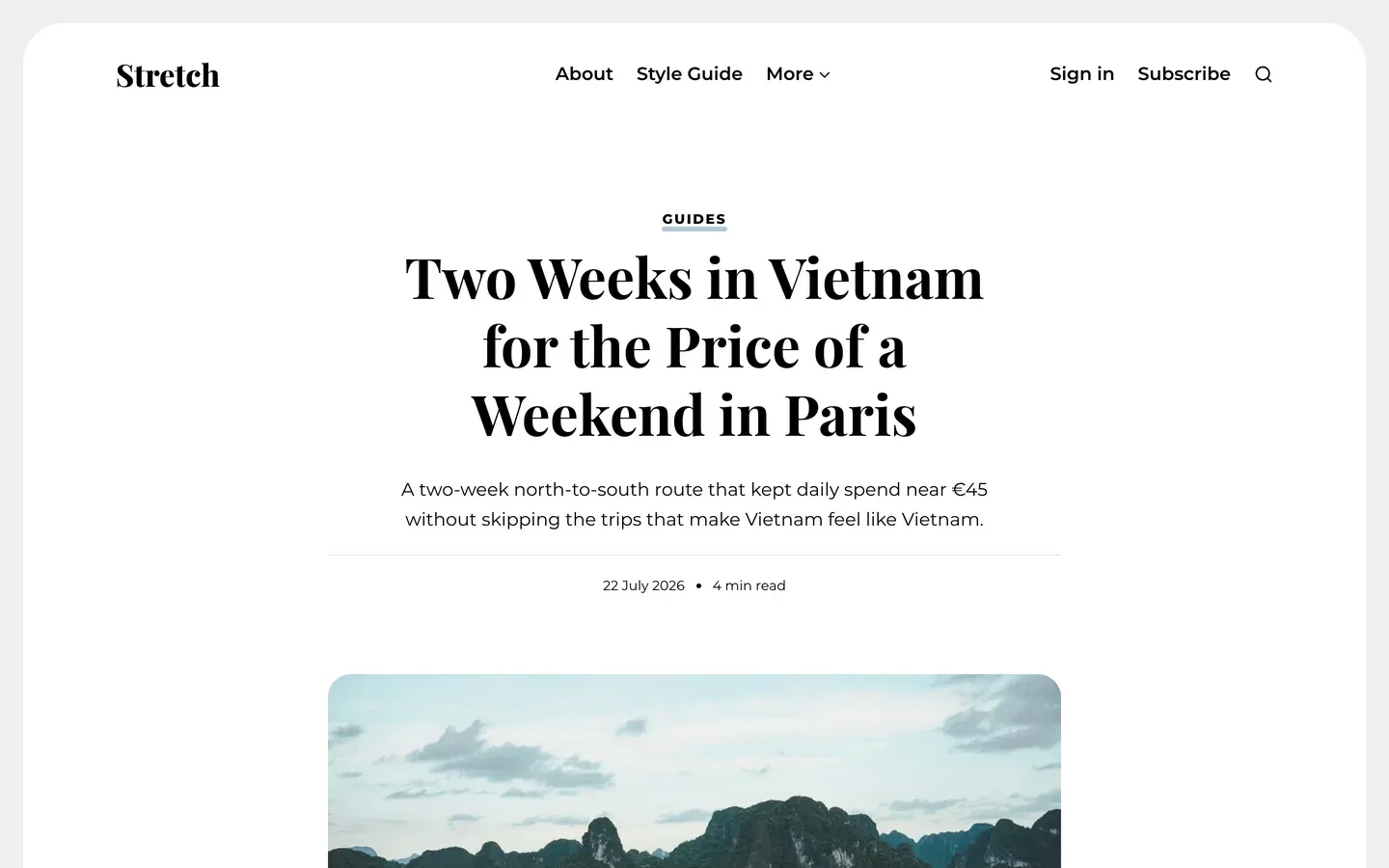
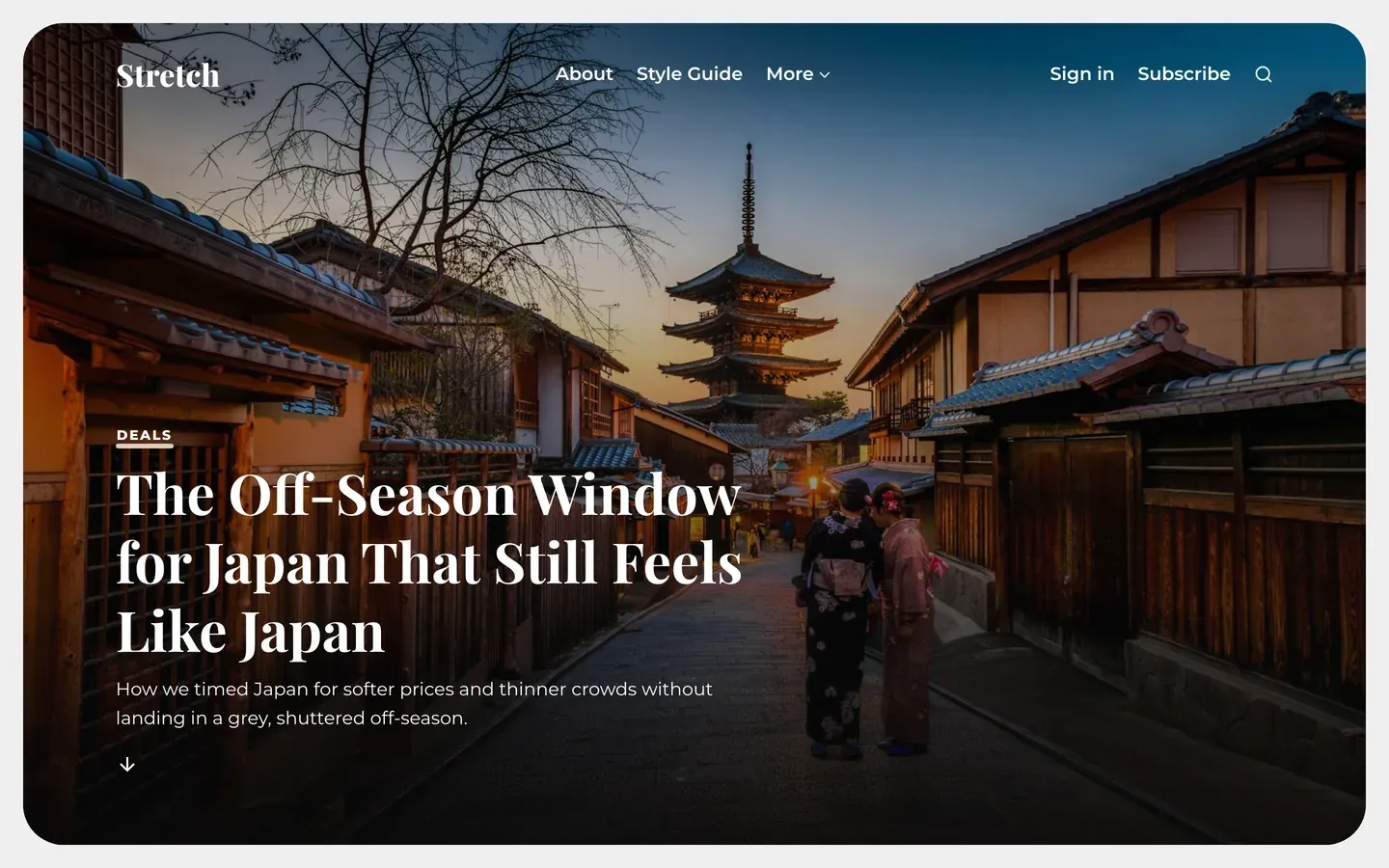
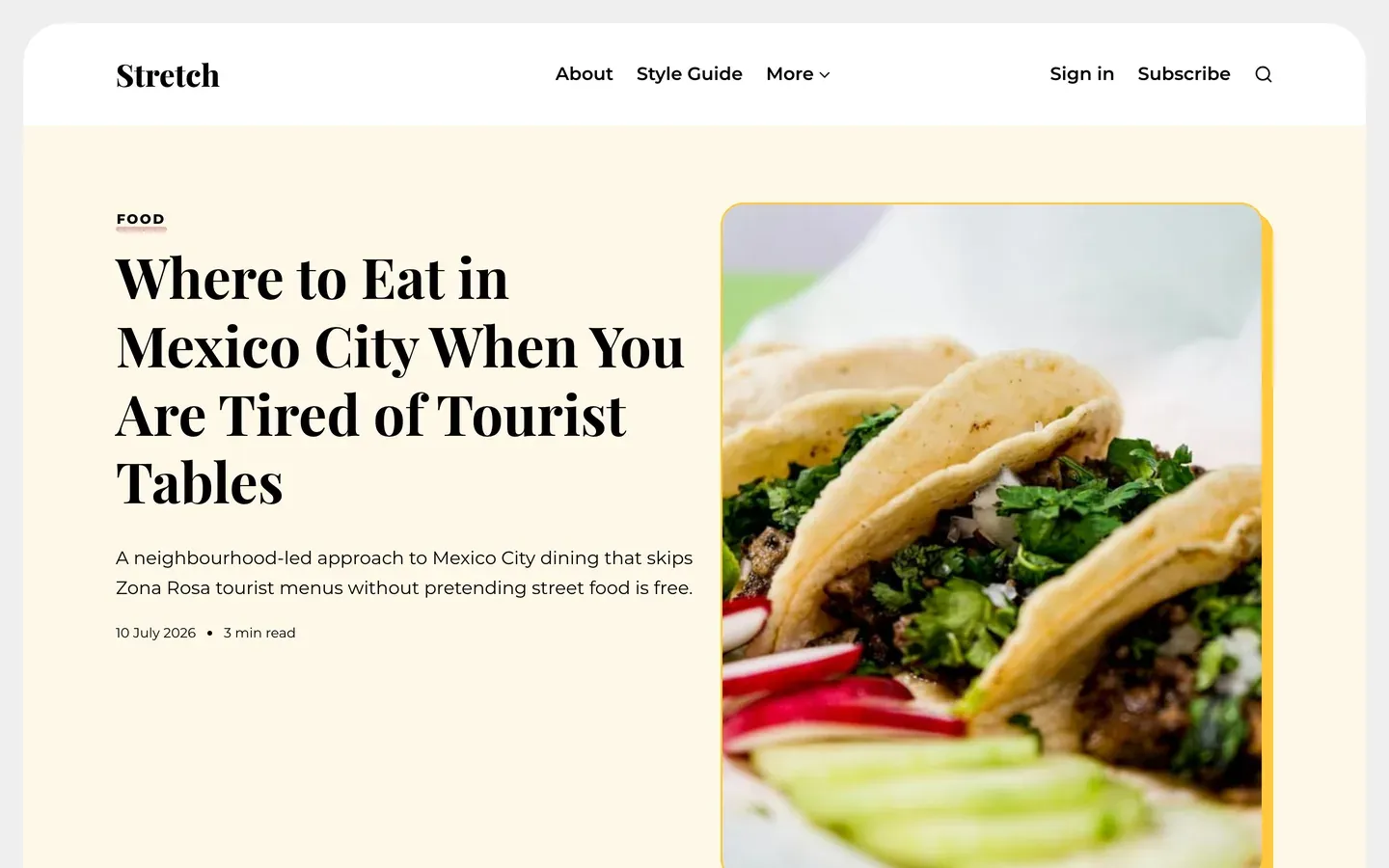
In the post editor, click the Post settings icon (top right) and choose a Template.
- Default: the title above the feature image.
- Post cover: a full-screen feature image with the title on top.
- Post split: the feature image beside the title.
Page templates
- Authors: a directory of every author.
- Tags: a directory of every tag, shown as topic cards.
- Subscribe: a sign-up page.
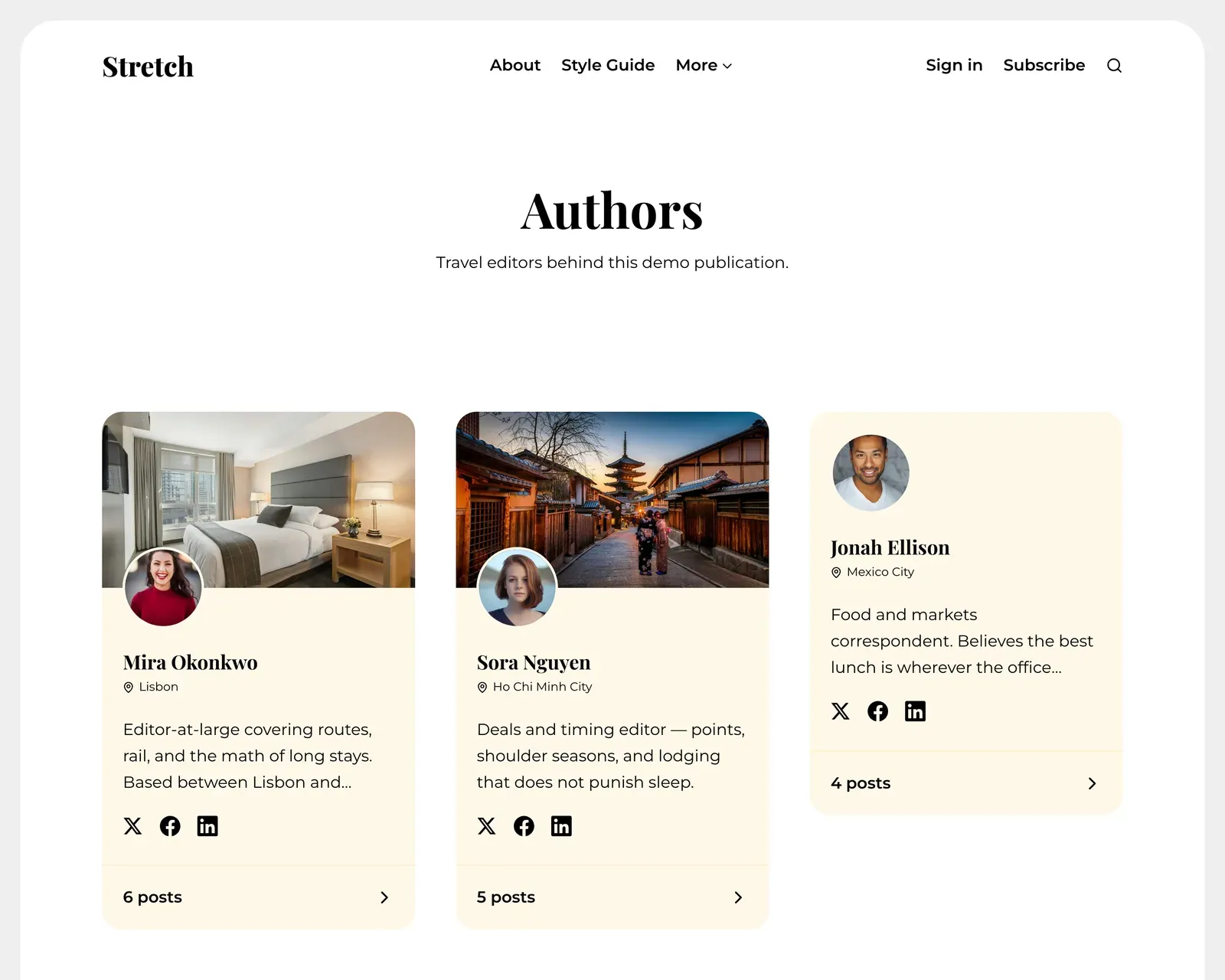
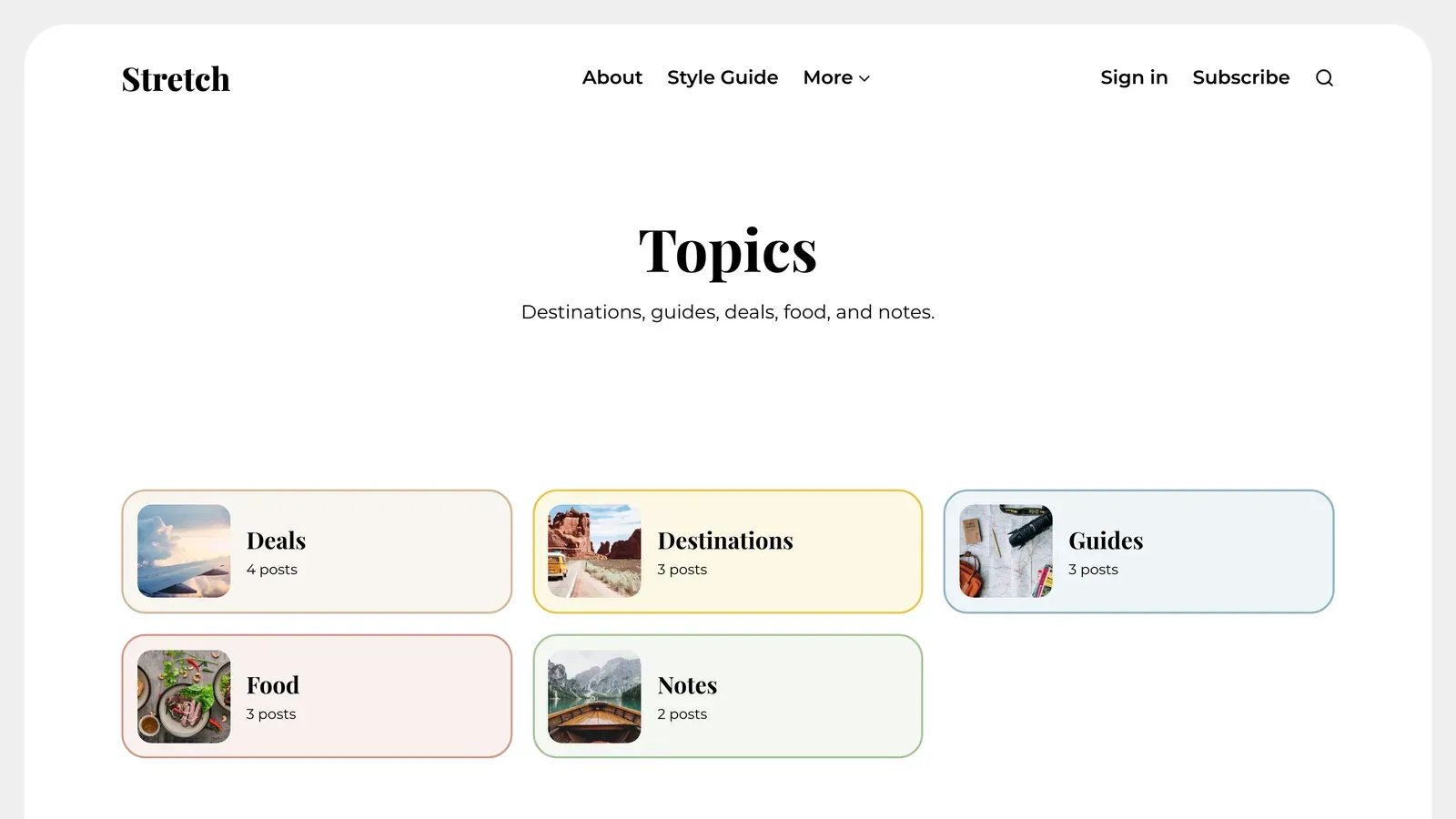
Create a page, click the Page settings icon (top right) and choose the Template.
Authors and Topics pages
Stretch can show a page listing every author (/authors/) and every topic (/tags/). To turn them on, upload a small routes file to Ghost.
- Download the file with the button above. It's already named
routes.yaml. (It's also in the Stretch zip asroutes.yaml.example.) - Back up your current routes: in Ghost Admin, go to Settings → Labs and click Open. Next to Routes, click Download current routes.
- Upload the new file: in the same place, click Upload routes file and choose
routes.yaml. - Create two pages with the slugs
authorsandtags. Give them a title; the content can be empty. Set the slug in Page settings → Page URL.
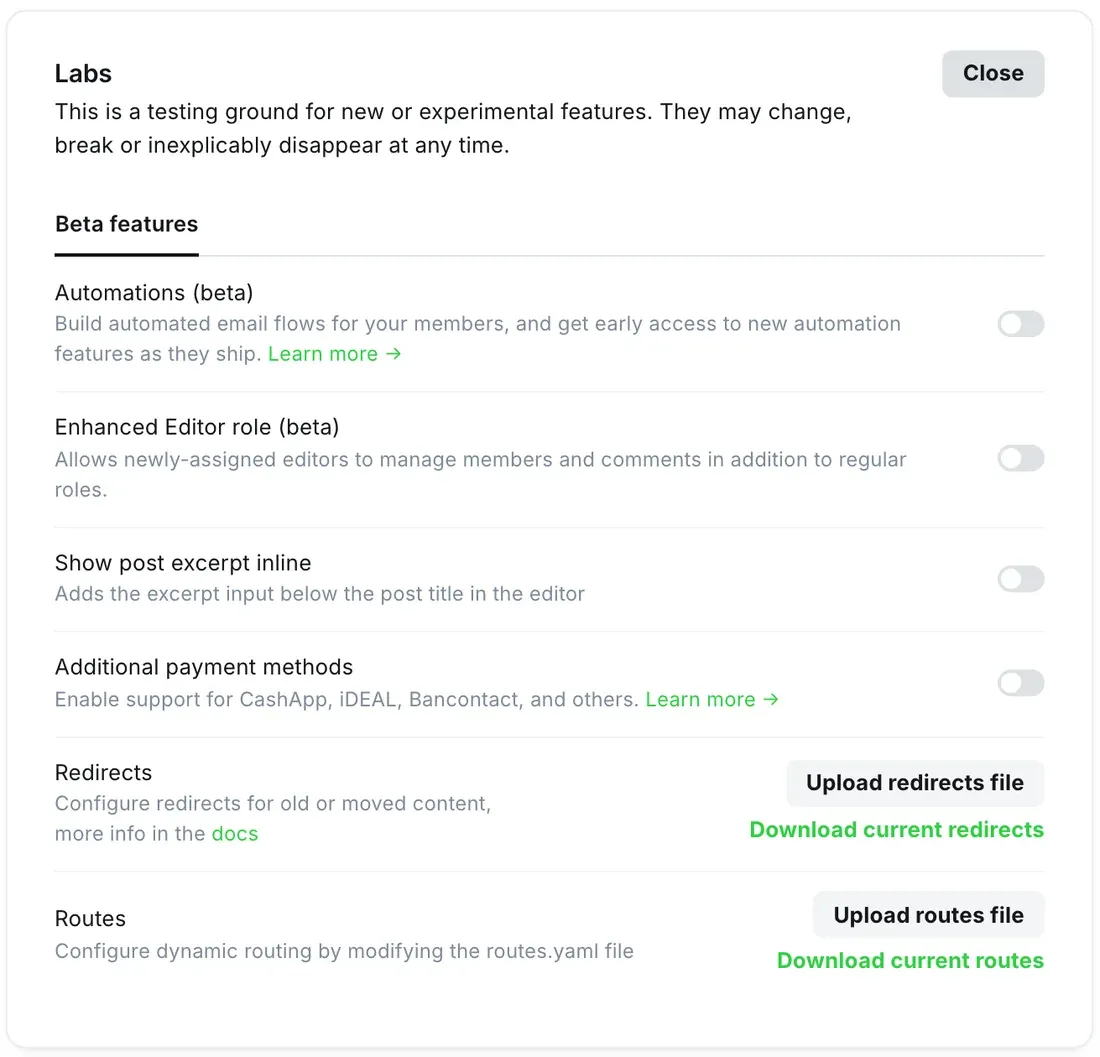
Already changed your routes before? Don't replace your file. Copy just the /authors/ and /tags/ lines from the new file into your own, then upload that.
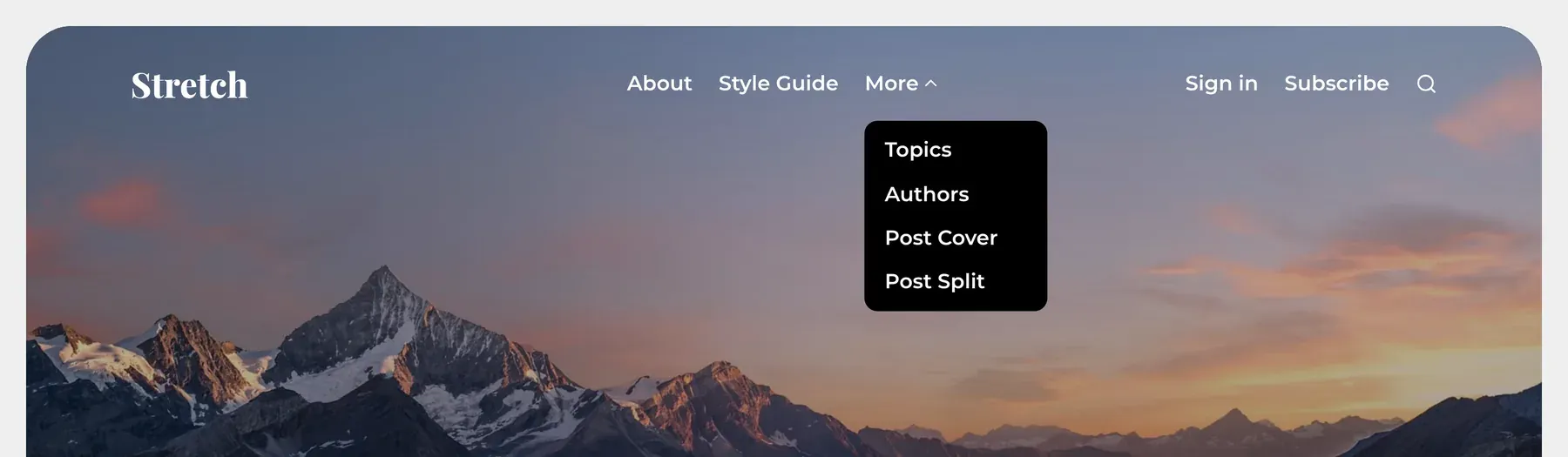
Dropdown menus
In Settings → Navigation (Primary tab), start a label with a dash and it becomes a dropdown item under the one above it.
| Label | URL |
|---|---|
| About | /about/ |
| - Team | /team/ |
| - Contact | /contact/ |
| Blog | /blog/ |
About becomes a dropdown with Team and Contact. The footer shows a flat list without the dashes.